If you have forgotten your SRS Acquiom password or need to change it for security purposes, you can do so from the sign-in page or from within your account.
From the sign-in page, click the Forgot Your Password link to the left of the Sign-In button.
This page allows you to send password reset instructions to the email address you use to sign in to your SRS Acquiom account. If you have added an alternate email to your account, you may send the password reset instructions to the alternate email address if needed.
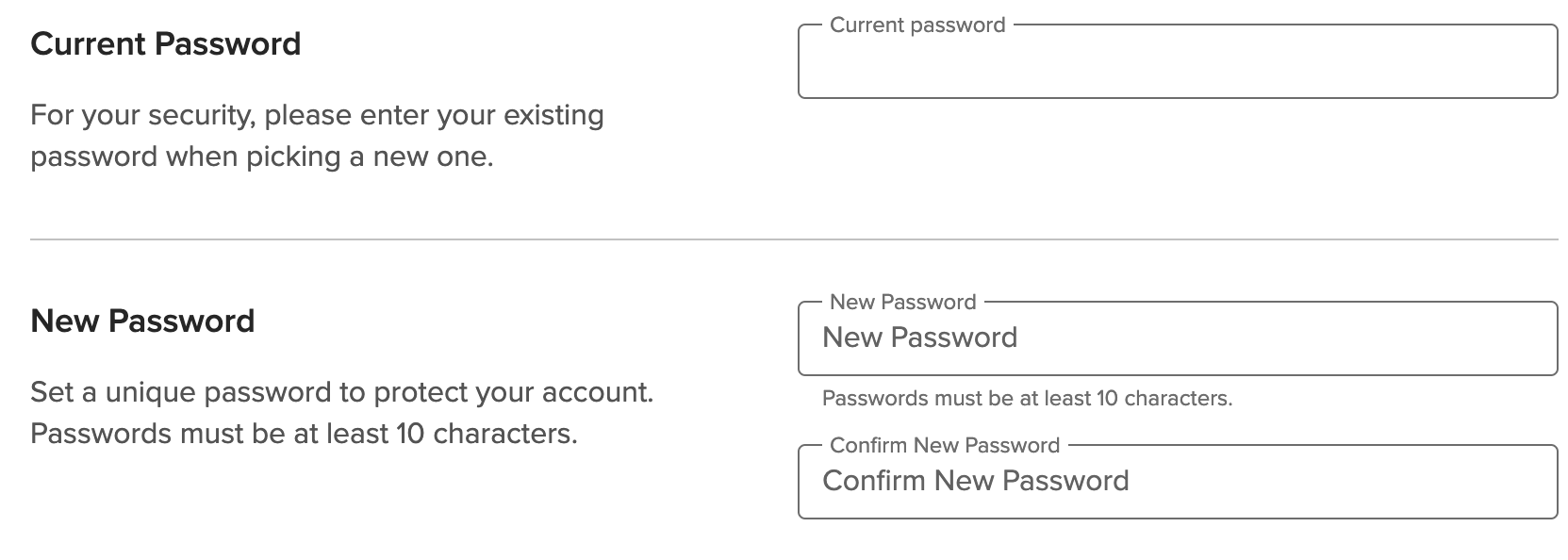
To update your password from within your account, first, click User Settings from your User Icon.
Troubleshooting
I've requested password reset instructions, but the link hasn't arrived in my email. What next?
- Check your spam or junk folders.
- Check to be sure you used the email address associated with your SRS Acquiom account to request password reset instructions. You can search your inbox for any previous emails from SRS Acquiom to see if that email address is registered with an SRS Acquiom account. If you attempt to reset your password using an email that is not associated with your account, you will not receive the instructions.
- If this is a business email, check with your IT department to see if automatic emails from SRS Acquiom are being held or quarantined by your email server.
If none of these steps resolve the issue, please let us know by sending an email to support@acquiom.com and listing any email addresses that may be associated with your account.
Note that the SRS Acquiom Support Team is not able to see the password you have on file and will never ask for your password. Please do not include your current or previous passwords in any email communication.
As an Administrator, can I reset the password for my users?
Users can have access to files from multiple SRS Acquiom Projects simultaneously. For this reason, SRS Acquiom passwords cannot be reset by anyone but the user for security purposes.
If you need to assist your users with resetting their password, you can follow the password reset steps above from the Sign-In Page and enter the user's email address when prompted. This will send the password reset link associated with that email address to the user.